Physical Address
304 North Cardinal St.
Dorchester Center, MA 02124
Physical Address
304 North Cardinal St.
Dorchester Center, MA 02124

Tech for beginners
I am always very picky when it comes to note-taking apps. My general use includes everything from remembering grocery lists to saving code snippets that I use often. The first note-taking app I used was Evernote, but then I switched to Google Keep and Microsoft OneNote. Both Google Keep and OneNote are great, but I find them lacking when it comes to saving code snippets.
While continuing my search for the perfect place to store my code snippets, I stumbled upon Obsidian. It supports markdown format and has a great community with helpful plugins. I can even have my own Kanban board!
I considered paying $8 for Obsidian’s vault sync, but since I already have several monthly subscriptions, I decided to explore cheaper or free options to sync my notes across my devices (a Windows laptop, a Mac Mini Desktop, and an Android phone).
Here is my experience:
Step 1: Installing Obsidian
Installing Obsidian is a straightforward process. I installed on my windows laptop using scoop package manager. Homebrew is my preferred package manager on macOS, and Obsidian is also available on Google’s Play Store.
Step 2: Create a folder on Google Drive for vault sync.
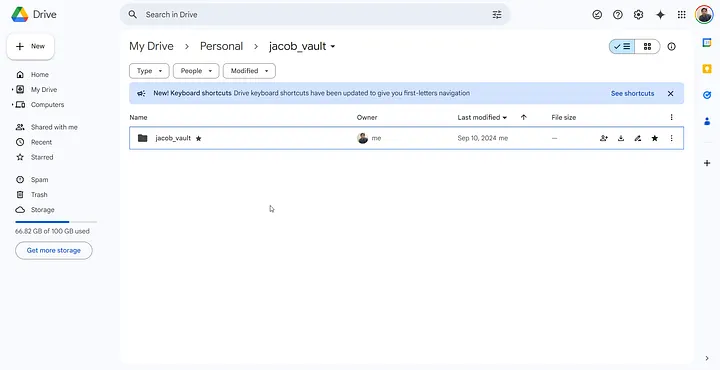
Step 3: Install Google Drive on your desktop
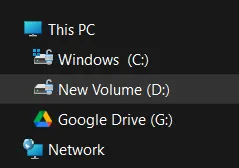
This what it looks like on windows
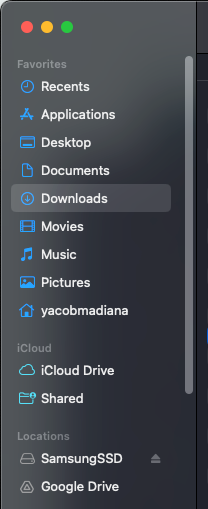
Thisi is what itt looks like on macOS
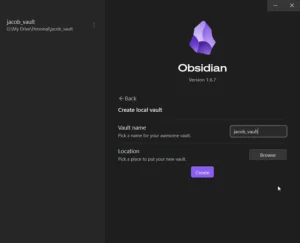
Step 4: Set Up Google Drive folder vault on Obsidian
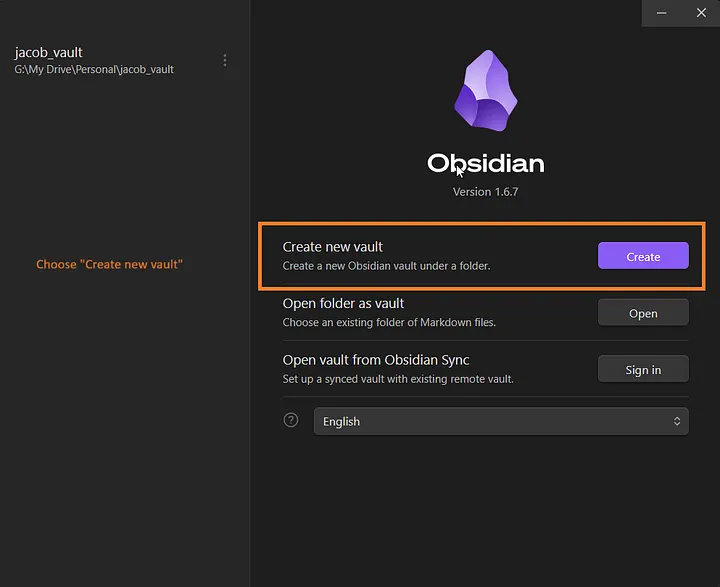
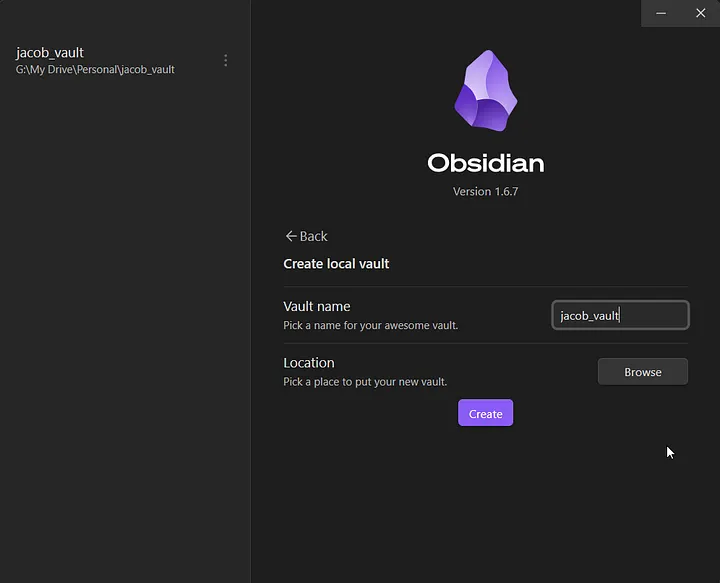
Give it a name
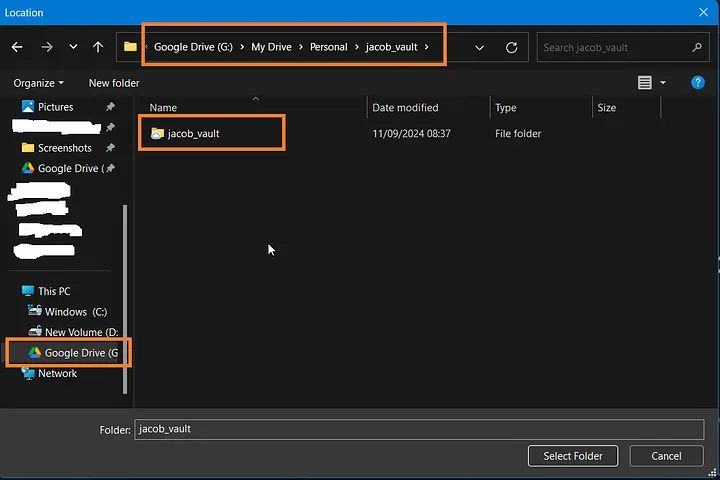
Click location and make sure you choose your Google Drive and navigate to the folder you created on Google Drive earlier
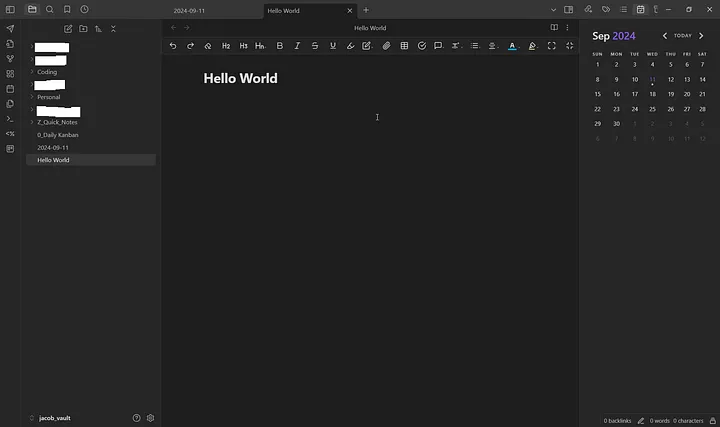
Your vault will be created
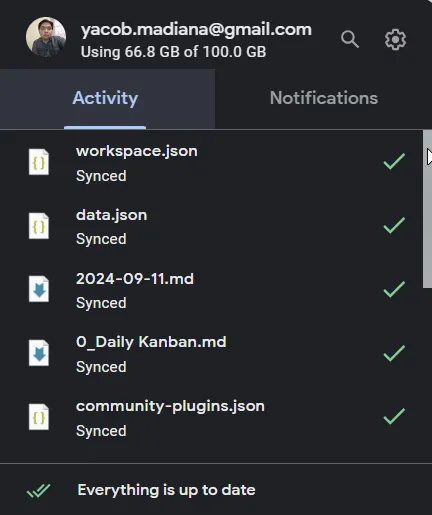
Google Drive will automatically track changes on the vault folder you created.
Step 5: Create a folder on your Android device
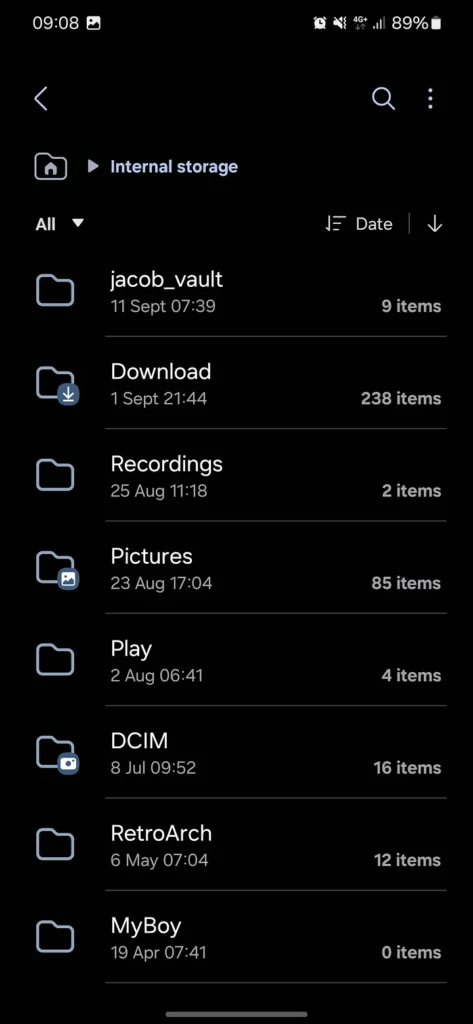
Preferrably use the same name as the vault’s name
Step 6: Install Autosync for Google Drive
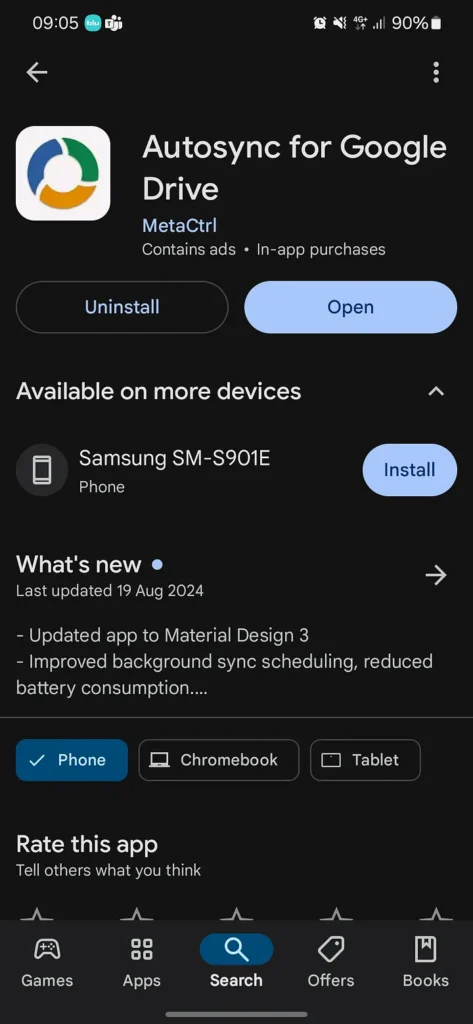
Step 7: Set Up Sync
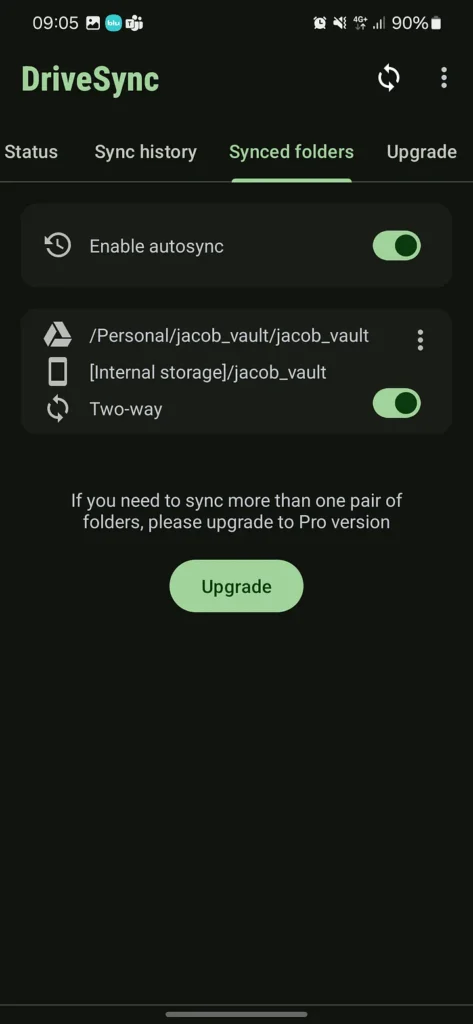
Connect to google drive and set up sync for your created local folder
Step 8: Open synced local vault on Obsidian
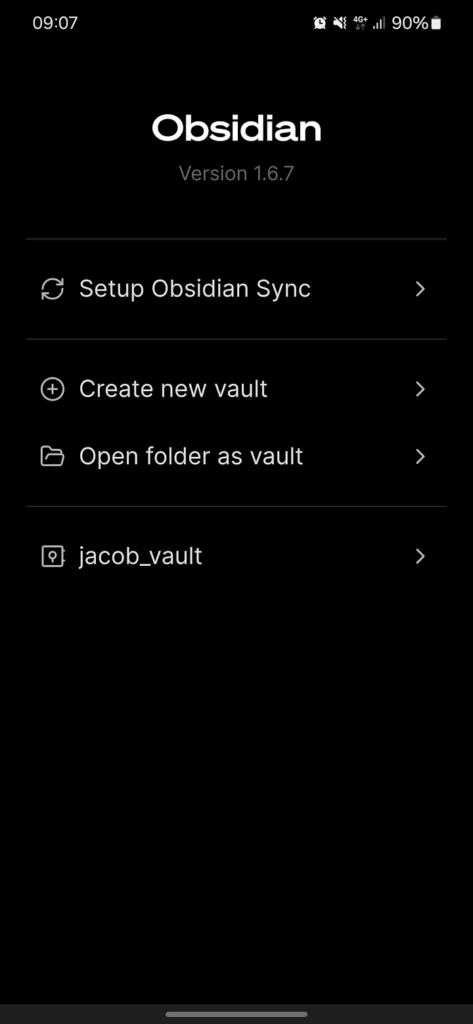
Finally Your Obsidian vault now will be synced with your other devices.
Please note that this process is not as seamless as the Obsidian’s paid vault sync service, but as long as you know what you’re doing, you should be ok. Personally, I created a sync widget on my android home, and I will sync when I need to.
There are some community plugins that will sync local vault to various cloud services, but for me this will do just fine.